
No result found
Please try rephrasing your search
How do I edit or delete a post?
Use the post menu to update, hide, save, copy, or delete a post.
Select the Wall icon at the top of the site.
Find the post on the Wall, or go to your private profile and scroll down to your posts.
Select the three-dot menu on the post, then choose the action you want to take.
Candidates, Agents, and Organisations have the same post menu options.
From the three-dot menu, you can choose Edit post, Save post, Copy link, Hide, or Delete.
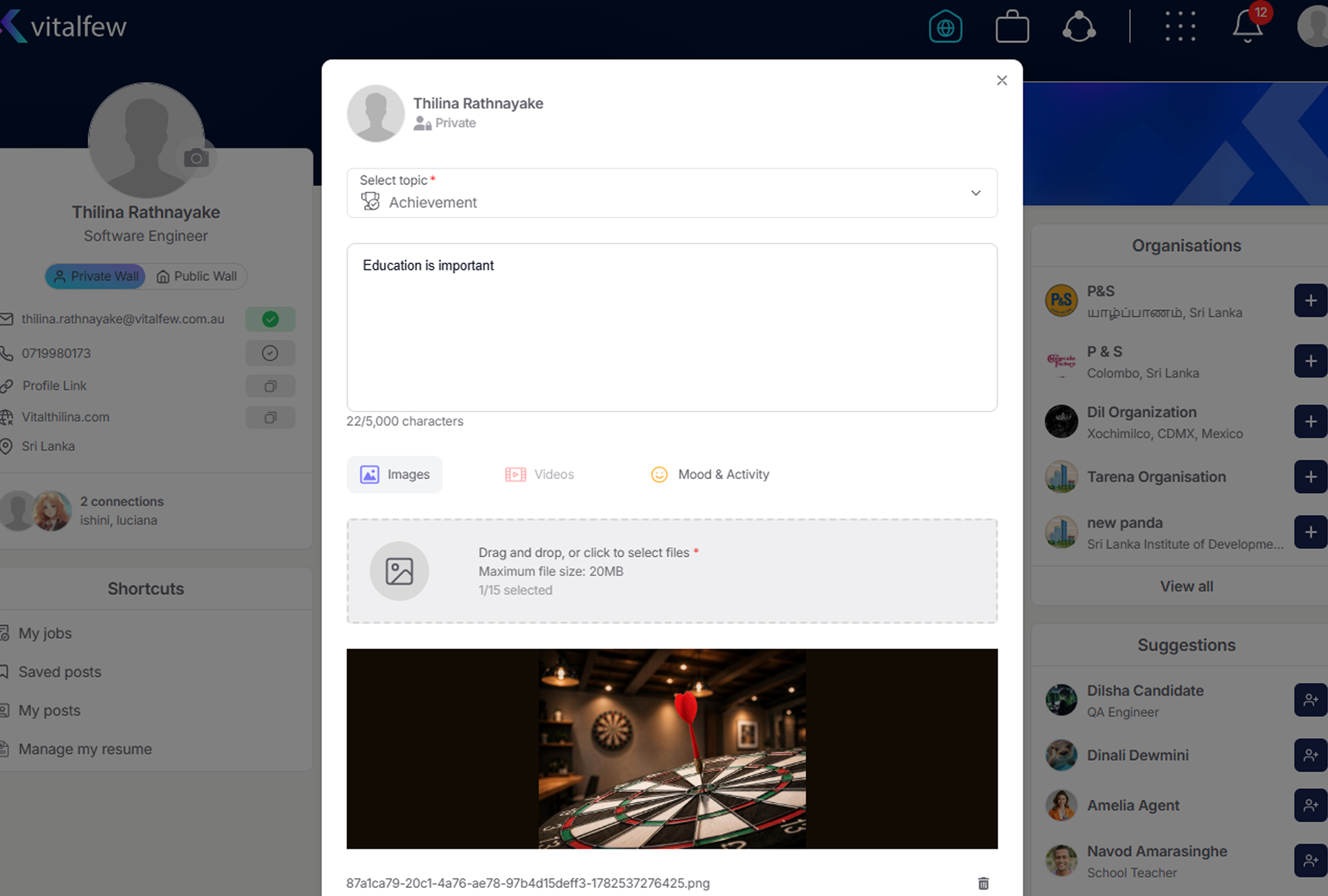
Use Edit post to update the post topic, description, images, or audience. You can also add or remove images after posting. Before changing who can see a post, review How do post visibility settings work?
Use Hide to take the post out of view for everyone else. You will still see it on your profile, marked as hidden, and you can unhide it at any time to make it visible again.
Candidates can also use My Posts on the Candidate Private Wall to find posts they have created. To learn more, see What shortcuts are available on my Candidate Private Wall?
You can also find posts from your private profile. To learn more about this area, see What is my private profile? and use How do I create a post? if you want to create a new post.
Common questions
Select the Wall icon at the top of the site, find the post, then open the three-dot menu.
Open the three-dot menu on the post, then select Delete.
You can edit the post topic, description, images, and audience.
Yes. You can add or remove images when editing the post.
Yes. You can change the post audience after posting.
Hide takes your post out of view for everyone else. You can still see it on your profile, marked as hidden.
The post is removed from the Wall and your profile immediately.