
No result found
Please try rephrasing your search
How do post visibility settings work?
Choose who can see your post before sharing it on VitalFew.
Select the Wall icon at the top of the site, then select the create post popup that says What is on your mind?
Use the audience option shown under your name.
Select Private, Extended, or Public before posting.
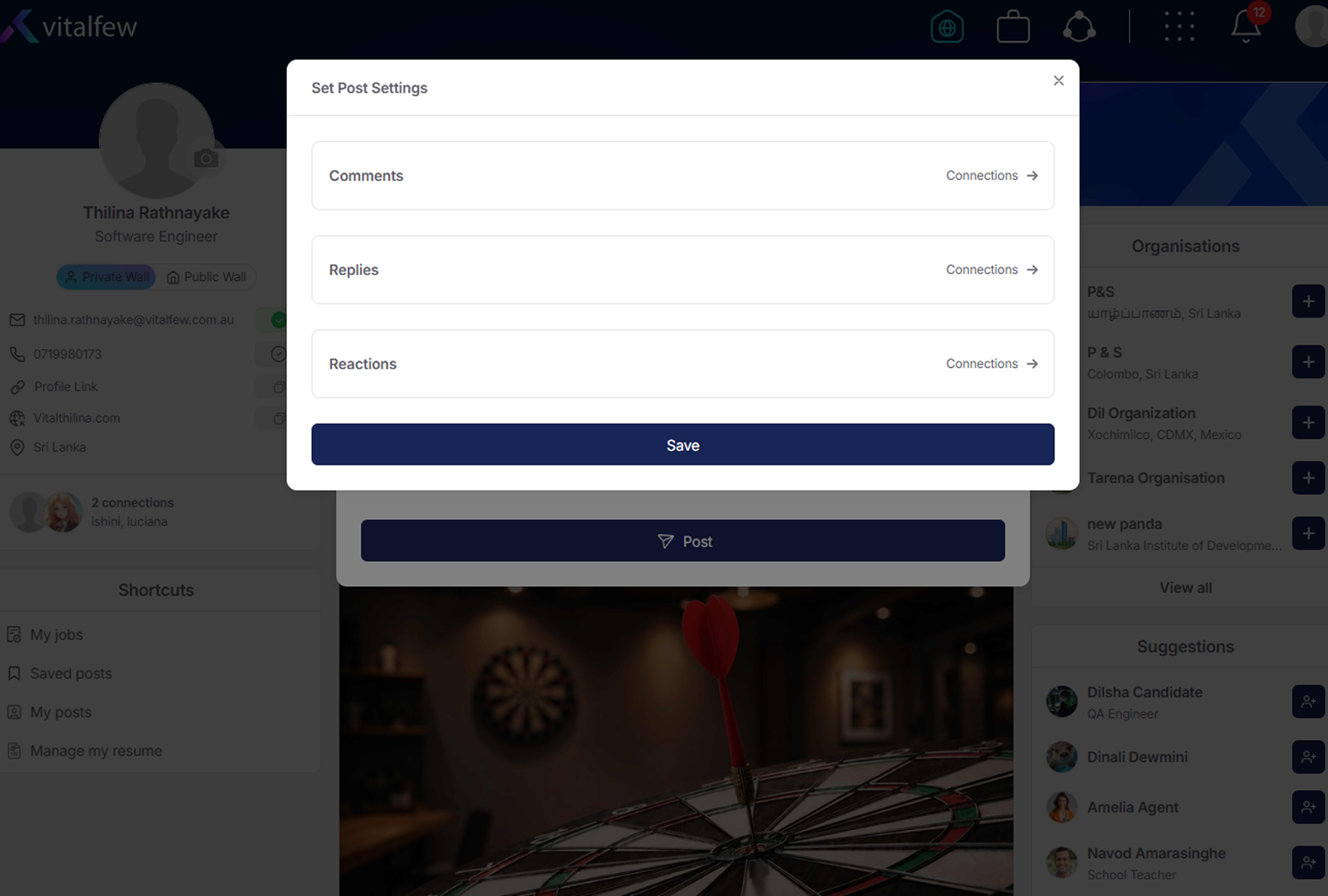
Post visibility settings help Candidates and Agents choose who can see each post.
Private means the post is visible to your direct connections only.
Extended means the post is visible to your direct connections and connections of your connections.
Public means the post is visible to users on VitalFew, subject to blocking and platform rules.
Organisations do not have post audience settings as they are pages and not profiles. Organisation posts are public on VitalFew.
Post visibility is different from profile visibility. To control who can view your profile details and contact information, see How do I manage profile visibility?
Blocked users cannot view your posts, comments, or shares. To learn more, see How do I block or unblock someone?
Common questions
Candidates and Agents can use post visibility settings.
Select the Wall icon at the top of the site, open the post popup, then select the audience option shown under your name.
Private means the post is visible to your direct connections only.
Extended means the post is visible to your direct connections and connections of your connections.
Public means the post is visible to users on VitalFew, subject to blocking and platform rules.
No. Organisation posts are public on VitalFew.